Published

All published posts

2604 posts latest post 2026-08-19 simple view
Publishing rhythm
Aug 2026 | 30 posts
Minecraft Doc Day 2
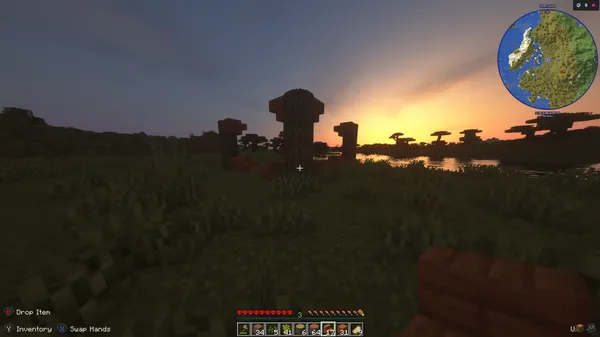
Sun setting over the fresh house frame as Day 2 brings sand collection for windows.
Minecraft Doc Day 1
The wooden frame of the new house begins to take shape on Day 1.

Give github actions the -e flag in the shebang #! so they fail on any one command failure. Otherwise each line will set the exit status, but only the last one will be passed to ci.

#!/bin/bash -e

What is -e #

The -e flag to the bash command allows your script to exit immediately if any command within the script returns a non-zero exit status. This can be useful for ensuring that your script exits with an error if any of the commands it runs fail, which can help you identify and debug issues in your script. For example, if you have a script that runs several commands and one of those commands fails, the script will continue running without the -e flag, but will exit immediately if the -e flag is present. This can make it easier to troubleshoot your script and ensure that it runs correctly.

Solution for Windows #

In windows the solution is not quite as simple. You can define a function in a Windows batch script that wraps an if statement to check the exit status of a command and handle any errors that may have occurred. Here is an example of how you might define a function called “check_error” that does this:

:check_error
if errorlevel 1 (
  echo An error occurred!
  exit /b 1
)

To use this function in your script, you would simply call it after running a command, like this:

some_command
call :check_error

This would run the “some_command” and then call the “check_error” function to check the exit status and handle any errors that may have occurred. This approach allows you to reuse the error-checking logic in your script, which can make it easier to write and maintain.
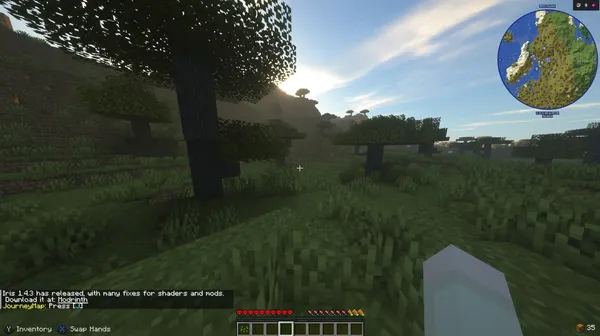

Minecraft Doc Day 0
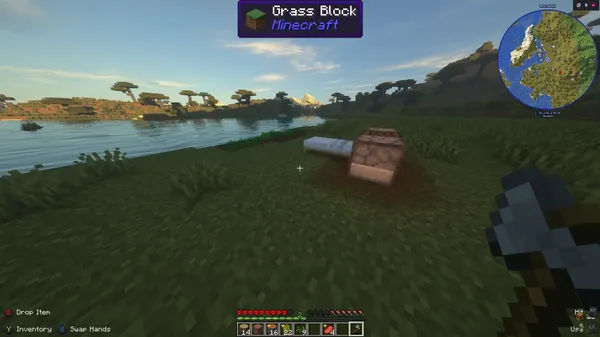
Acacia biome spawn with trees and resources in a new hardcore world.

minecraft documentary

This is my first time journaling a Minecraft hardcore world, my son Wyatt is also documenting his journey in a survival world on wyattbubbylee.com. Day 0 # init I logged into a brand new hardcore world. I was welcomed by a great Acacia biome spawn full of resources. I quickly cut my first tree, crafted an axe and set out to find my first sheep. I was able to find enough sheep for a bed, several cows and pigs. I crafted a set of wooden tools, and farmed out a wheat farm till my wooden hoed died at the shore of a nearby stream. I found a small stone outcropping in the side of a hill and harvested nearly a full stack of cobblestone from my first wooden pick. I ended the first day by sleeping in my bed safe from mobs. Achievements # bed furnace stone wheat farm Day 1 # Thoughout the course of day one I collected wood and started the framework for my new house. Day 2 # Day two continued the framework of the house, and a bit of sand collection for windows. I was a bit late to bed and saw fou…

I recently setup some vm’s on my main machine and got sick of signing in with passwords.

ssh-keygen
ssh-copy-id -i ~/.ssh/id_rsa.pub virt

Moving panes between tmux sessions is something that makes tmux a very flexible and powerful tool. I don’t need this feature very often, but it comes in clutch when you need it.

Pull a pane from any other session #

Using choose-window I was able to come up with a way to select any pane withing any other session and join it into my current session.

# Choose a pane to join in horizontally
bind f choose-window -Z 'join-pane -h -s "%%"'

Push/Pull from scratch #

I’ve long had this one in my tmux config, I always have a “scratch” session that I’m running, I often use for looking at things like k9s accross repos within a popup.

This use case puts a pane into the scratch session, then pulls it back out. I will use this to move a pane between sessions in the rare cases I need to do this.

# push the active pane into the scratch session horizonally
bind -n M-f join-pane -ht scratch
# pull the last active pane from the scratch session horizonally into this session
bind -n M-F join-pane -hs scratch
joehillen has done a fantastic job with sysz. Highly recommend taking a look. An fzf terminal UI for systemctl
Just starred clipmenu by cdown. It’s an exciting project with a lot to offer. Clipboard management using dmenu

I just shared some ssh keys with myself and ran into this error telling me that I did not set the correct permissions on my key.

@@@@@@@@@@@@@@@@@@@@@@@@@@@@@@@@@@@@@@@@@@@@@@@@@@@@@@@@@@@
@         WARNING: UNPROTECTED PRIVATE KEY FILE!          @
@@@@@@@@@@@@@@@@@@@@@@@@@@@@@@@@@@@@@@@@@@@@@@@@@@@@@@@@@@@
Permissions 0750 for '/home/waylon/.ssh/id_*******' are too open.
It is required that your private key files are NOT accessible by others.
This private key will be ignored.
Load key "/home/waylon/.ssh/id_*******": bad Permissions
repo: Permission denied (publickey,gssapi-keyex,gssapi-with-mic).
fatal: Could not read from remote repository.

Please make sure you have the correct access rights
and the repository exists.

I changed them with the following commands.

chmod 644 ~/.ssh/id_*******.pub
chmod 600 ~/.ssh/id_*******
Check out nvim by Allaman. It’s a well-crafted project with great potential. Minimal, blazingly fast, and pure Lua based Neovim configuration for my work as DevOps/Cloud Engineer with batteries included for Python, Golang, and, of course, YAML

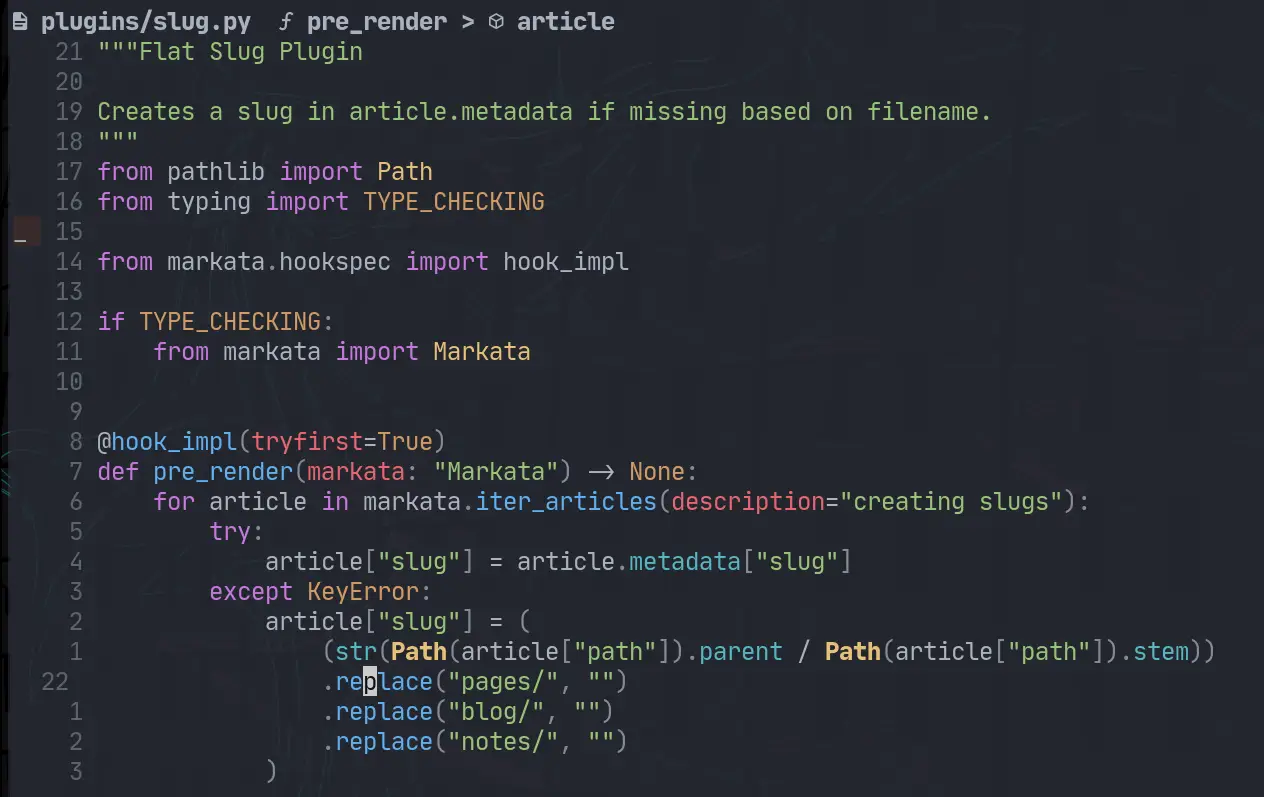
With the latest release of version of nvim 0.8.0 we get access to a new winbar feature. One thing I have long wanted somewhere in my nvim is navigation for pairing partners or anyone watching can keep track of where I am. As the driver it’s easy to keep track of the file/function you are in. But when you make big jumps in a few keystrokes it can be quite disorienting to anyone watching, and having this feedback to look at is very helpful.

“cybernetic soldier working on a rusting tape machine robot, cinematic lighting, detailed, cell shaded, 4 k, warm colours, concept art, by wlop, ilya kuvshinov, artgerm, krenz cushart, greg rutkowski, pixiv. cinematic dramatic atmosphere, sharp focus, volumetric lighting, cinematic lighting, studio quality” -s50 -W832 -H416 -C6.0 -Ak_lms -S2841371882

winbar #

nvim exposes the winbar api in lua, and you can send any text to the winbar as follows.

vim.o.winbar = "here"

You can try it for yourself right from the nvim command line.

:lua vim.o.winbar = "here"

Now you will notice one line above your file with the word here at the very beginning.

Clearing the winbar #

If you want to clear it out, you can just set it to an empty string or nil.

:lua vim.o.winbar = ""
:lua vim.o.winbar = nil

Setting up nvim-navic #

You will need to install nvim-navic if you want to use it. I added it to my plugins using Plug as follows.

call plug#begin('~/.local/share/nvim/plugged')
Plug 'SmiteshP/nvim-navic'
call plug#end()

Note! nvim-navic does require the use of the nvim lsp, so if you are not using it then maybe this won’t work for you.

I created an on_attach function long ago, cause that’s what Teej told me to do. Now I am glad I did, because it made this change super easy.

local function on_attach(client, bufnr)
    if client.server_capabilities.documentSymbolProvider then
        navic.attach(client, bufnr)
    end
end

Then you need to use that on_attach function on all of the lsp’s that you want navic to work on.

Then in a lua file you need to setup the winbar, for now I put this in my lsp-config settings file, but eventually I want to move my settings to lua and put it there.

vim.o.winbar = " %{%v:lua.vim.fn.expand('%F')%}  %{%v:lua.require'nvim-navic'.get_location()%}"

What my winbar looks like #

What I have right now is everything someone who is watching would need to know to navigate to the same place that I am in the project.

 waylonwalker/app.py   Link >  on_click
nvim-navic-example.webp

Diff #

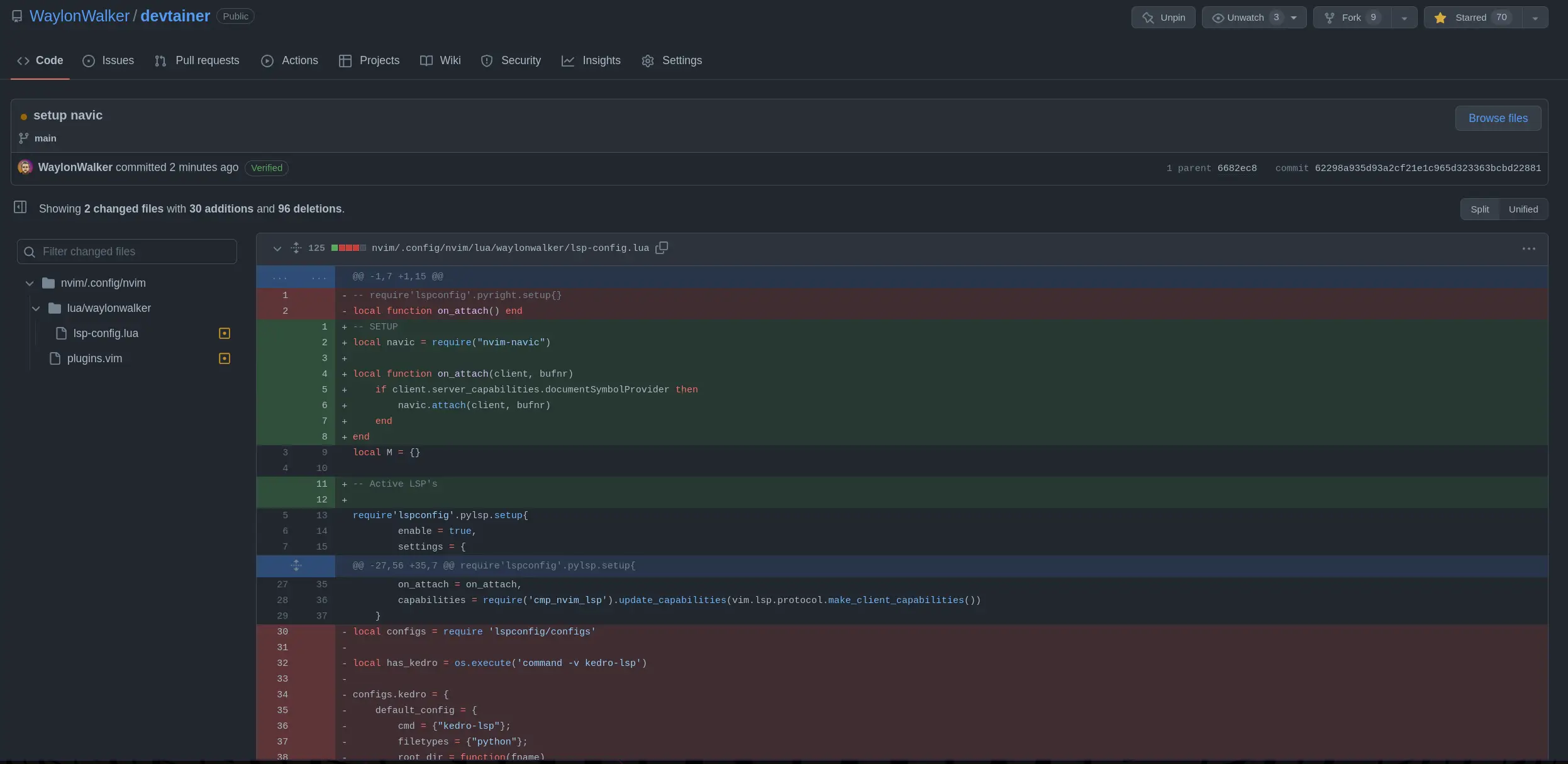
Here are the changes that I made to to my plugins list and my lsp-config to get it.

 /home/u_walkews/.config/nvim/plugins.vim
call plug#begin('~/.local/share/nvim/plugged')
+Plug 'SmiteshP/nvim-navic'
#  /home/u_walkews/.config/nvim/lua/waylonwalker/lsp-config.lua
-local function on_attach() end
+local navic = require("nvim-navic")
+local function on_attach(client, bufnr)
+    if client.server_capabilities.documentSymbolProvider then
+        navic.attach(client, bufnr)
+    end
+end
+
+vim.o.winbar = " %{%v:lua.vim.fn.expand('%F')%}  %{%v:lua.require'nvim-navic'.get_location()%}"

GH commit #

If you want to see the change on GitHub, here is the diff

nvim-navic-setup-gh-diff.webp