Posts tagged: linux

All posts with the tag "linux"

123 posts latest post 2026-04-18
Publishing rhythm
Mar 2026 | 1 posts

Big announcement recently that obs studio now builds out to a flatpak, hopefully making it easier for all of us to install, especially us near normies that don’t regularly compile anything from source.

I did not have flatpak installed so the first thing I had to do was get the flatpak command installed, and add their default repo.

sudo apt install flatpak flatpak remote-add --if-not-exists flathub https://flathub.org/repo/flathub.flatpakrepo

Once I had flatpak, I was able to get obs installed with the following command.

flatpak install flathub com.obsproject.Studio

Once Installed it fired right up for me with the next command they suggested.

...

Anyone just starting out their vim customization journey is bound to run into this error.

E5520: <Cmd> mapping must end with <CR>

I did not get it #

I’ll admit, in hindsight it’s very clear what this is trying to tell me, but for whatever reason I still did not understand it and I just used a : everywhere.

If you run :h <cmd> you will see a lot of reasons why you should do it, from performance, to hygene, to ergonomics. You will also see another clear statement about how to use <cmd>.

E5520 <Cmd> commands must terminate, that is, they must be followed by <CR> in the {rhs} of the mapping definition. Command-line mode is never entered.

When to map with a : #

You still need to map your remaps with a : if you do not close it with a <cr>. This might be something like prefilling a command with a search term.

...

One thing about moving to a tiling window manager like awesome wm or i3 is that they are so lightweight they are all missing things like bluetooth gui’s out of the box, and you generally bring your own. Today I just needed to connet a new set of headphones, so I decided to just give the bluetoothctl cli a try. It seems to come with Ubuntu, I don’t think I did anything to get it.

bluetoothctl

Running bluetoothctl pops you into a repl/shell like bah, python, or ipython. From here you can execute bluetoothctl commands.

Here is what I had to do to connect my headphones.

# list out the commands available help # scan for new devices and stop when you see your device show up scan on scan off # list devices devices paired-devices # pair the device pair XX:XX:XX:XX:XX:XX # now your device should show up in the paired list paired-devices # connet the device connect XX:XX:XX:XX:XX:XX

help #

Here is the output of the help menu on my machine, it seems pretty straight forward to block, and remove devices from here.

...

Samba is an implementation of the smb protocol that allows me to setup network shares on my linux machine that I can open on a variety of devices.

I think the homelab is starting to intrigue me enought to dive into the path of experimenting with different things that I might want setup in my own home. One key piece of this is network storage. As I looked into nas, I realized that it takes a dedicated machine, or one virtualized at a lower level than I have capability for right now.

To get goind I am going to make a directory /srv/samba/public open to anyone on my network. I am not going to worry too much about it, I just want something up and running so that I can learn.

Install samba, open the firewall, and edit the smb.conf

...

A super useful tool when doing PR’s or checking your own work during a big refactor is the silver searcher. Its a super fast command line based searching tool. You just run ag "<search term>" to search for your search term. This will list out every line of every file in any directory under your current working directory that contains a match.

It’s often useful to need some extra context around the change. I recently reviewed a bunch of PR’s that moved schema from save_args to the root of the dataset in all yaml configs. To ensure they all made it to the top level DataSet configuraion, and not underneath save_args. I can do a search for all the schemas, and ensure that none of them are under save_args anymore.

Installing rust in your own ansible playbook will make sure that you can get consistent installs accross all the machines you may use, or replicate your development machine if it ever goes down.

I try to install everything that I will want to use for more than just a trial inside of my ansible playbook. This way I always get the same setup across my work and home machines, and anytime I might setup a throw away vm.

This is how rust reccomends that you install it on Ubuntu. First update your system, then run their installer, and finally check that the install was successful.

# system update sudo apt update sudo apt upgrade # download and run the rust installer curl https://sh.rustup.rs -sSf | sh # confirm your installation is successful rustc --version

Ansible Install #

The first thing I do in my playbooks is to check if the tool is already installed. Here I chose to look for cargo, you could also look for rustc.

...

Creating a minimal config specifically for git commits has made running git commit much more pleasant. It starts up Much faster, and has all of the parts of my config that I use while making a git commit. The one thing that I often use is autocomplete, for things coming from elsewhere in the tmux session. For this cmpe-tmux specifically is super helpful.

The other thing that is engrained into my muscle memory is jj for escape. For that I went agead and added my settings and keymap with no noticable performance hit.

Here is the config that has taken

~/.config/nvim/init-git.vim

...

One of the first things I noticed broken in my terminal based workflow moving from Windows wsl to ubuntu was that my clipboard was all messed up and not working with my terminal apps. Luckily setting tmux and neovim to work with the system clipboard was much easier than it was on windows.

First off you need to get xclip if you don’t already have it provided by your distro. I found it in the apt repositories. I have used it between Ubuntu 18.04 and 21.10 and they all work flawlessly for me.

I have tmux setup to automatically copy any selection I make to the clipboard by setting the following in my ~/.tmux.conf. While I have neovim open I need to be in insert mode for this to pick up.

# ~/tmux.conf bind -T copy-mode-vi Enter send-keys -X copy-pipe-and-cancel "xclip -i -f -selection primary | xclip -i -selection clipboard" bind-key -T copy-mode-vi MouseDragEnd1Pane send-keys -X copy-pipe-and-cancel "xclip -selection clipboard -i"

To get my yanks to go to the system clipboard in neovim, I just added unnamedplus to my existing clipboard variable.

...

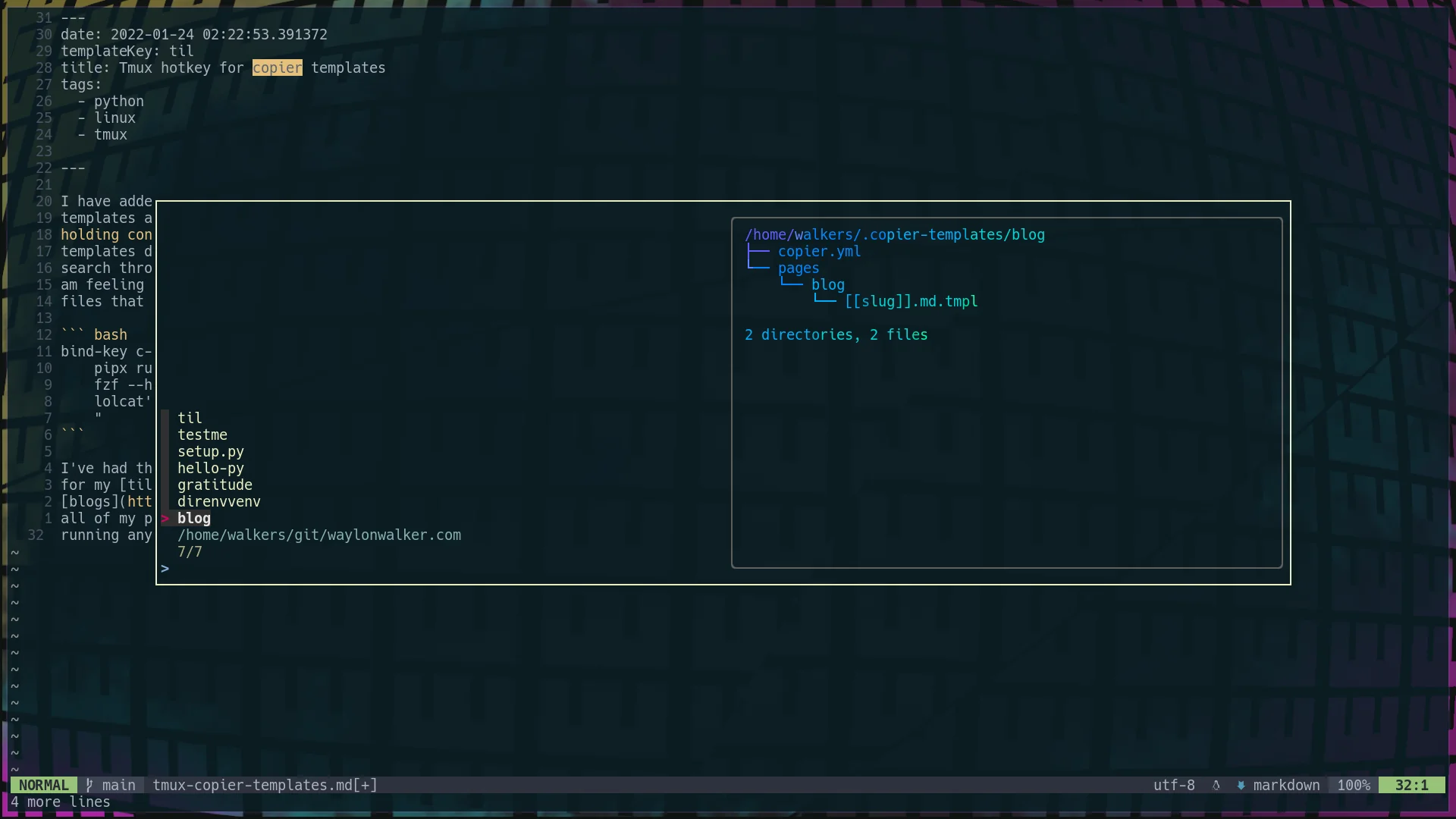
I have added a hotkey to my copier template setup to quickly access all my templates at any time from tmux. At any point I can hit <c-b><c-b>, thats holding control and hitting bb, and I will get a popup list of all of my templates directory names. Its an fzf list, which means that I can fuzzy search through it for the template I want, or arrow key to the one I want if I am feeling insane. I even setup it up so that the preview is a list of the files that come with the template in tree view.

bind-key c-b popup -E -w 80% -d '#{pane_current_path}' "\ pipx run copier copy ~/.copier-templates/`ls ~/.copier-templates |\ fzf --header $(pwd) --preview='tree ~/.copier-templates/{} |\ lolcat'` . \ "

I’ve had this on my systems for a few weeks now and I am constantly using it for my tils,

Copier allows you to run post render tasks, just like cookiecutter. These are defined as a list of tasks in your copier.yml. They are simply shell commands to run.

The example I have below runs an update-gratitude bash script after the copier template has been rendered.

# copier.yml num: 128 _answers_file: .gratitude-copier-answers.yml _tasks: - "update-gratitude"

I have put the script in ~/.local/bin so that I know it’s always on my $PATH. It will reach back into the copier.yml and update the default number.

I really appreciate that in linux anything can be scripted, including setting the wallpaper. So everytime I disconnect a monitor I can just rerun my script and fix my wallpaper without digging deep into the ui and fussing through a bunch of settings.

feh --bg-scale ~/.config/awesome/wallpaper/my_wallpaper.png

I set my default wallpaper with feh using the command above.

Leaning in on feh, we can use fzf to pick a wallpaper from a directory full of wallpapers with very few keystrokes.

alias wallpaper='ls ~/.config/awesome/wallpaper | fzf --preview="feh --bg-scale ~/.config/awesome/wallpaper/{}" | xargs -I {} feh --bg-scale ~/.config/awesome/wallpaper/{}'

I have mine alias’d to wallpaper so that I can quickly run it from my terminal.

Converting markdown posts to pdf on ubuntu takes a few packages from the standard repos. I had to go through a few stack overflow posts, and nothing seemed to have all the fonts and packages that I needed to convert markdown, but this is what ended up working for me.

sudo apt install \ pandoc \ texlive-latex-base \ texlive-fonts-recommended \ texlive-extra-utils \ texlive-latex-extra \ texlive-xetex

Using pandoc to convert markdown to a pdf #

# older versions of pandoc, I needed this one on ubuntu 18.04 pandoc pages/til/convert-markdown-pdf-linux.md -o convert-markdown-pdf.pdf --latex-engine=xelatex # newer versions of pandoc, I needed this one on ubuntu 21.04 pandoc pages/til/convert-markdown-pdf-linux.md -o convert-markdown-pdf.pdf --pdf-engine=xelatex 
results of converting...</p></div>
  </div>

  <footer class=

I recently paired up with another dev running windows with Ubuntu running in wsl, and we had a bit of a stuggle to get our project off the ground because they were missing com system dependencies to get going.

Open up a terminal and get your required system dependencies using the apt package manager and the standard ubuntu repos.

sudo apt update sudo apt upgrade sudo apt install \ python3-dev \ python3-pip \ python3-venv \ python3-virtualenv pip install pipx

Using an Ansible-Playbook #

I like running things like this through an ansible-playbook as it give me some extra control and repeatability next time I have a new machine to setup.

- hosts: localhost gather_facts: true become: true become_user: "{{ lookup('env', 'USER') }}" pre_tasks: - name: update repositories apt: update_cache=yes become_user: root changed_when: False vars: user: "{{ ansible_user_id }}" tasks: - name: Install System Packages 1 (terminal) become_user: root apt: name: - build-essential - python3-dev - python3-pip - python3-venv - python3-virtualenv -...

Stow is an incredible way to manage your dotfiles. It works by managing symlinks between your dotfiles directory and the rest of the system. You can then make your dotfiles directory a git repo and have it version controlled. In my honest opinion, when I was trying to get started the docs straight into deep detail of things I frankly don’t really care about and jumped right over how to use it.

When using stow its easiest to keep your dotfiles directory (you may name it what you want) in your home directory, with application directories inside of it.

Then each application directory should reflet the same diretory structure as you want in your home directory.

Here is a simple example with my zshrc.

...

The copier answers file is a key component to making your templates re-runnable. Let’s look at the example for my setup.py.

❯ tree ~/.copier-templates/setup.py /home/walkers/.copier-templates/setup.py ├── [[ _copier_conf.answers_file ]].tmpl ├── copier.yml ├── setup.cfg └── setup.py.tmpl 0 directories, 4 files

Inside of my [[ _copier_conf.answers_file ]].tmpl file is this, a message not to muck around with it, and the ansers in yaml form. The first line is just a helper for the blog post.

# ~/.copier-templates/setup.py/\[\[\ _copier_conf.answers_file\ \]\].tmpl # Changes here will be overwritten by Copier; NEVER EDIT MANUALLY [[_copier_answers|to_nice_yaml]]

Inside my copier.yml I have setup my _answers_file to point to a special file. This is because this is not a whole projet template, but one just for a single file.

# copier.yml # ... _answers_file: .setup-py-copier-answers.yml

Once I change the _answers_file I was incredibly stuck

...

pipx examples

count lines of code # pipx run pygount markata pipx run pygount markata --format=summary pipx run pygount markata --suffix=cfg,py,yml

I’ve been stuck many times looking at a vim buffer with little question marks at the beginning of each line and trying to get rid of them. for so long I didn’t know what they were so trying to get rid of them was impossible.

It turns out they are tabs, and you can get rid of the little leading question marks with this substitution command.

tmux popups can be sized how you like based on the % width of the terminal on creation by using the flags (h, w, x, y) for height, width, and position.

# normal popup tmux popup figlet "Hello" # fullscreen popup tmux popup -h 100% -w 100% figlet "Hello" # 75% centered popup tmux popup -h 100% -w 75% figlet "Hello" # 75% popup on left side tmux popup -h 100% -w 75% -x 0% figlet "Hello"

example running these commands